How to manage photo overload: photo culling tips
By Photobox on 25 August 2026
Looking for the best way to organise digital photos? This guide will help you master your photo management. Learn how to go from picture hoarder to digital minimalist and how to turn your absolute faves into prints, photo books or wall art.

Want to become a better photo organiser? This guide covers the quickest ways to organise your digital photos, from deleting duplicates and clearing out utility shots, to building simple weekly habits that stop the clutter coming back. Plus how to turn your best shots into something worth keeping, like prints, photo books or wall art.
Why does photo overload happen so quickly?

It takes roughly half a second to snap a picture on your phone – that’s the easy bit. The part that requires real brain power is deciding what we do with them after. And more often than not, the decision feels so big that we just, well… avoid it entirely.
We also often rely on our phone’s camera as a visual notepad for remembering where we parked the car (definitely level 3, right?!) and for recipes we will never (ever) cook. Add in the fact that we all take five versions of the exact same pose ‘just in case’, and you suddenly become a major picture hoarder without even trying. The cloud just quietly sweeps the mess under the virtual rug until your storage is at max capacity. It’s not the one and happens so much quicker than we realise.
What are the fastest wins for freeing up photo storage?

Start with the easiest methods first. This is the top trick for culling pictures since it requires zero emotional energy. Here are some of our tips:
1. Delete utility photos first
The best way to cull photos is by splitting your gallery into two groups:
- Actual memory photos you want to keep. Think milestones, holiday moments and family snaps
- Utility photos like screenshots, receipts, Wi-Fi passwords, delivery notes, documents and shopping lists.
Utility photos are only meant to be useful for a few days. Once they’ve served their purpose, they’re just contributing to your electronic hoarding and getting in the way of your most precious memories.
Our tip: Go back through the last seven days of your gallery and zap any recent utility snaps first, then simply type ‘screenshots’ or ‘receipts’ into your search bar to clear out all those old (and random) saves in one fell swoop. Tomorrow you will be very grateful.
2. Remove blurry photos and duplicates
This is another low-stakes culling photography task because you can hit delete knowing a much better version of the photo already exists.
- Top tip for Android: Google Photos has a brilliant storage manager that flags your biggest files and blurriest mistakes for you.
- Top tip for iPhone: Apple Photos also has a dedicated duplicates area where you can easily merge matching files. These built-in tools do the hard work for you, so… let them.
3. Review large videos and old burst sequences
Videos and burst shots are the biggest storage hoarders. Take a second to clear out those massive ten-minute clips of fireworks you won’t ever watch again and you’ll get gigabytes of space back instantly.
4. Empty your trash / recently deleted folder
Deleted photos usually still count against storage until this is cleared, so make sure you hit the empty button to officially claim back that sacred storage space.
How do you build photo organising habits that actually stick?

Nobody really wants to spend ages swiping through tons of snaps or figure out their photo management software. But don’t worry, all you need is a few routines that run in the background of your week instead. Here are some of our favourite ways to stay on top of things:
The weekly 5-minute clean
Pick a quiet or boring moment in your week (like waiting for your pasta to boil) and quickly review whatever you snapped over the last week. First, bin the utility shots, then take a second pass and delete the sure no-gos including blurry and duplicate snaps (we’re looking at you accidental floor and lock screen shots).
The 30-second rule
We’re all guilty of taking lots of shots of the same scene just to make sure everyone looks good (and Dad hasn’t got his eyes closed again). You can save yourself so much hassle by picking the winner right there and then. Delete the outtakes before you even put your phone back in your pocket (so you can get straight back to enjoying the present moment).
The ‘Would I print this?’ test
Whenever you feel unsure about keeping a picture, ask yourself if it actually means something to you. Will you care about it in a year? If looking at it doesn’t give you that little rush of happiness, and you wouldn’t bother turning it into a glossy Photobox print, it probably doesn’t need to eat up your precious storage space. Save your camera roll for the moments that matter most.
Turn it into a challenge
Reframe the whole thing as a fun mini-game so it feels way less like admin. Try tackling one of these quick challenges to jumpstart your photo management journey:
- Delete ten random screenshots on your commute every day for a week
- Hunt down and clear 50 accidental burst shots in one sitting
- Set a five-minute timer while your cuppa brews and see how many blurry selfies you can bin
- Pick a completely random month from last year and give just those days a total haul
- Scroll back to a past holiday and pick the top ten shots to save (and clear the 20 variations of the incredible breakfast spread)
- Clear out every single picture of a parking space before your lunch break is over
- Build a dedicated ‘print me right now’ album by this time next week
‘Favourite’ your faves
Tap the little heart icon on the absolute belters as soon as you take them. You can then drop those top-tier snaps into a dedicated monthly folder later on (more on that next). This is the habit that’ll make you feel super organised when you finally get those favourites printed.
How should you organise the photos you want to print?

You can make the whole process super simple by setting up a sorting system for the memories that you really care about. Here are some of our recommendations:
- Create albums with your favourites: We’ve already recommended favouriting those standout shots as soon as you take them, but take a little bit of time once a month to review those hearted pics and move the strongest images into their own dedicated albums by month or occasion.
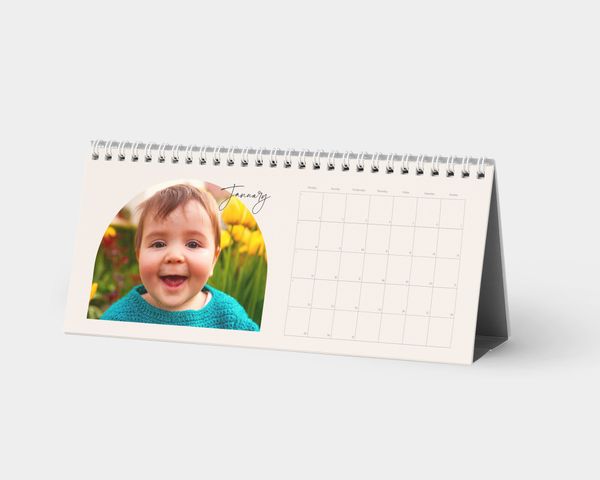
- Use a clear naming system: Give those folders obvious names (like ‘Ibiza girls trip’, ‘Winter city break’ or ‘Dad’s 60th’). Pre-sorted collections like this mean you’re good to go the minute you sit down to create your Photobox prints, that personalised calendar for your sister, or that trip-of-a-lifetime photo book.
What are the best tools for organising photos?

The absolute best photo culling software depends on where your photos already live – for most of us it’s usually just the app already sitting on our phone.
How to organise photos in OneDrive
If you turn on OneDrive’s camera backup, it’ll save your files in the cloud. It automatically catches every single snap you take and drops it into one massive folder (which is great for backing up your tech across multiple devices).
To master your online image management, we recommend popping into that main folder (usually ‘Pictures’ > ‘Camera roll’) and setting up some simple folders for your biggest moments. Just make sure you understand how their deletion rules work before you clear anything out (ask us how we know…).
How to manage storage in Google Photos
Use their handy built-in storage manager to quickly review your large videos and photos. You can also search directly for documents, screenshots and receipts to clear out the extras in a few taps.
How to clean duplicates in Apple Photos
Head to the specific duplicates area in your Photos app. Apple automatically identifies matching images and lets you merge them (meaning it keeps the best quality version and deletes the extras for you). You can then use the Favourites button and custom albums to keep your best memories in easy reach.
Should you use photo sorting apps?
Third-party photo management apps (like Slidebox or Flic) are pretty great if you want to make sorting feel more like a fun swipe game. If you hear people talking about culling in Lightroom or Aftershoot culling, don’t panic. That’s serious photography workflow software mainly reserved for the pros who need a photo organiser for massive weddings and events. Phew.
A simple monthly photo maintenance routine

The good news is: A good monthly photo routine takes only around 15 minutes and keeps your camera roll manageable without any big clear-out sessions. Set a recurring reminder each month and work through these three steps:
- Do a final duplicate and screenshot sweep: Check for anything your weekly clean missed, including rogue screenshots that slipped through the net
- Check your storage limits: Open Apple Photos, Google Photos or OneDrive and merge any remaining duplicates to reclaim space
- Move your favourites into a specific album: Collect the shots you favourited over the last four weeks and pop them into a specific album so they are ready to print
Do the quick five-minute weekly sweep to keep clutter at bay, and use this monthly check-in to organise the photos worth keeping. That’s really all the photo management you need.
How can Photobox help me organise my photos?
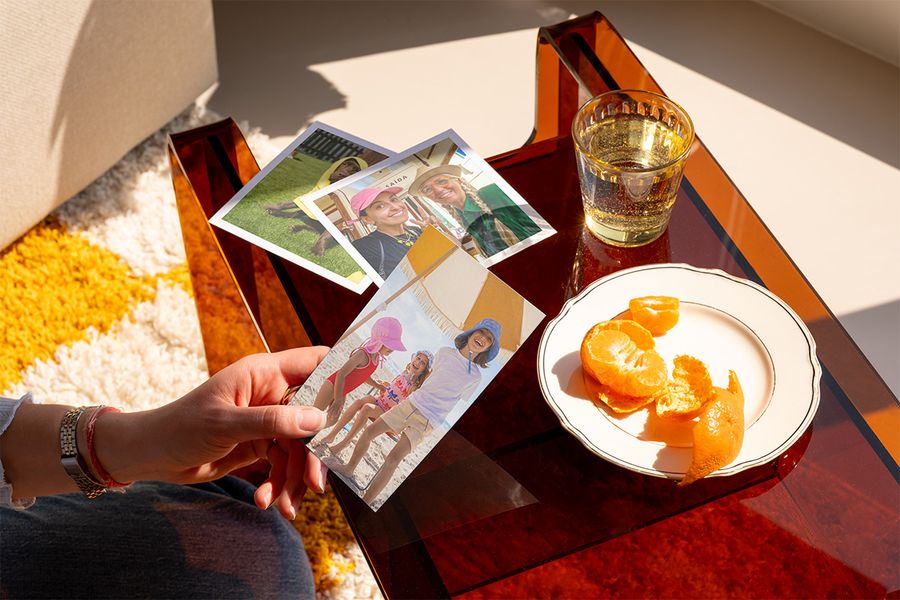
Sorting your gallery helps you free up storage and makes it easier to turn your favourite moments into something tangible. You can take those pre-sorted albums and turn them straight into a collection of beautiful prints, a custom calendar or a premium photo book. It makes your whole photo management routine so worth it and lets your photo ‘keepers’ finally become something you can look at and smile about every single day.
Digital minimalism FAQs
Do deleted photos still take up storage?
Usually, yes. They hang around in your recently deleted or bin folders for about thirty days before actually disappearing. If you want that phone storage back right away, you need to empty those folders. It works pretty much the same across Apple, Android and most online image management tools.
Which app is best for organising a camera roll?
Honestly, the best app is whatever is already installed on your phone. Apple Photos and Google Photos are brilliant at recognising faces and locations for you (which saves a lot of time when you’re searching for that one specific holiday snap). You really don’t need fancy third-party photo management software unless you have tens of thousands of pictures to sort through.
Can I recover photos after deleting duplicates?
You usually can if you catch it quickly enough. Most phones will hold onto your merged or binned duplicates in a recently deleted folder for a few weeks (just in case you change your mind). Just make sure you have the best version saved before you permanently empty the trash.
How often should I clean up my camera roll?
The best way to organise digital photos is to just take five minutes a week to clear out blurs or random screenshots. The small habits we’ve listed above keep your gallery looking fresh and stops the digital hoarding before it even starts.
How do I organise photos for printing?
The easiest way is to tap the heart icon on your best shots as soon as you take them. You can then just grab those favourites once a month and pop them into a dedicated folder (like ‘Christmas 2025’ or ‘Baby’s 1st birthday’). When you finally sit down to create your Photobox prints or gifts, your perfect shortlist is already waiting for you.